Microsoft Teams Rooms
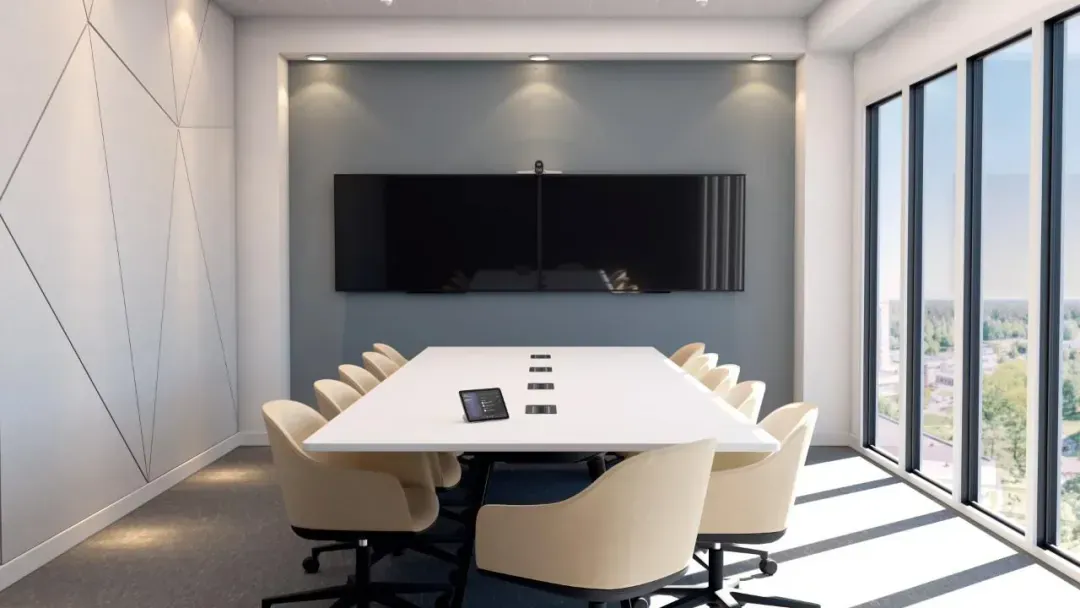
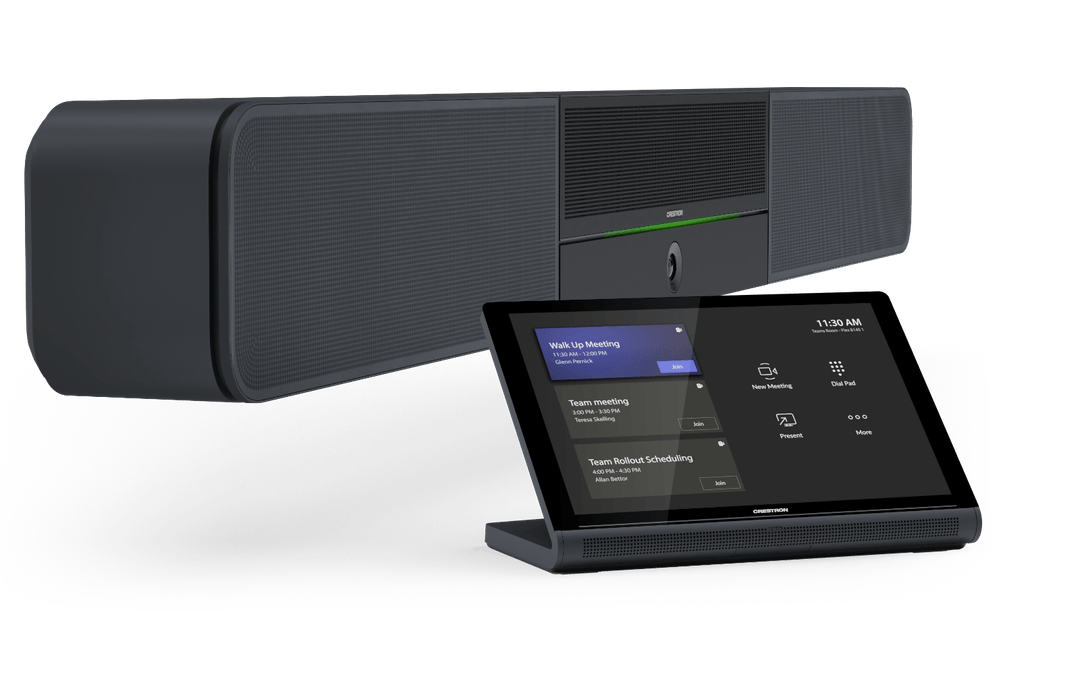
For organisations whose everyday meetings and room calendars centre on Microsoft Teams. Plan the room account, approved hardware, licensing and any required guest-meeting workflow.
Explore Teams Rooms installation
Bring everyone into the conversation. We design, install and support Teams, Zoom, Webex and BYOD conferencing workflows—with the right cameras, audio and controls for your organisation.
Not a search for the right cable. Not a camera pointed at half the table. Not a remote colleague asking everyone to repeat themselves.
Masters Voice Technology designs, installs and supports commercial video conferencing systems across Sydney and NSW. We connect the meeting platform, room hardware, audio and user workflow so people in the room and at the far end can take part.
Use this guide to compare conferencing applications, supported hardware brands and ways to join meetings. For the wider space—layouts, displays, acoustics and room types—explore our Meeting Room AV hub.
Choose around the meetings you host and the invitations you receive. A platform application, a hardware brand and a complete room system are different decisions.
For organisations whose everyday meetings and room calendars centre on Microsoft Teams. Plan the room account, approved hardware, licensing and any required guest-meeting workflow.
Explore Teams Rooms installation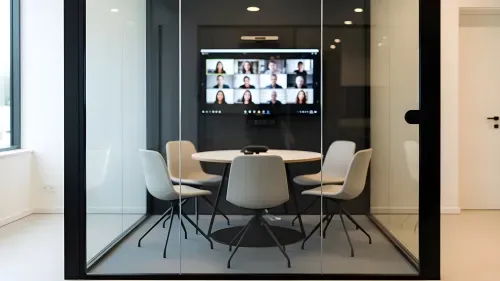
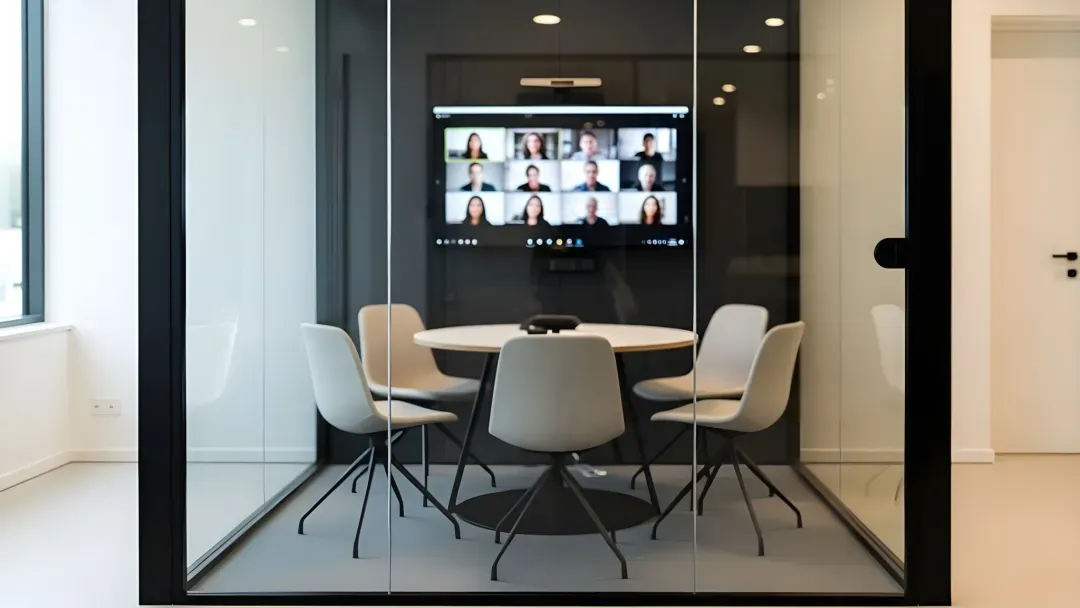
For a dedicated Zoom room experience. Plan scheduling, the room controller, content sharing and the way users join meetings hosted on other platforms.
Compare native and laptop workflows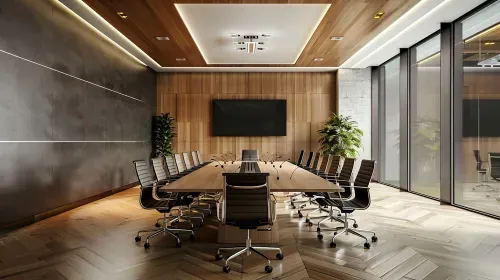
For established Cisco conferencing environments and specialist applications. Confirm the device operating mode, registration, meeting services and interoperability needed.
See Cisco conferencing in our NCAT projectA compatible USB or BYOD connection lets a laptop use the room camera and audio with a supported application. Some dedicated room systems also offer third-party meeting joins. We check the required route, permissions and features instead of assuming every meeting behaves the same way.
Understand cross-platform conferencingSelect the approach closest to your day-to-day meetings. These are planning options; the final design depends on your room, platform and IT environment.
A useful fit: frequent meetings on a standard company platform, with a consistent user experience across sites.
A useful fit: varied meeting applications, visiting presenters and spaces where the host brings a device.
A useful fit: a standard room platform plus regular external meetings that need laptop flexibility.
We specify hardware around participant coverage, meeting applications and operational requirements. Certification applies to specific products and configurations—not every device carrying a brand name.
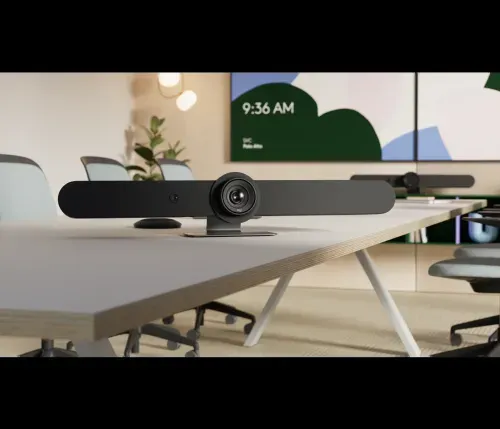
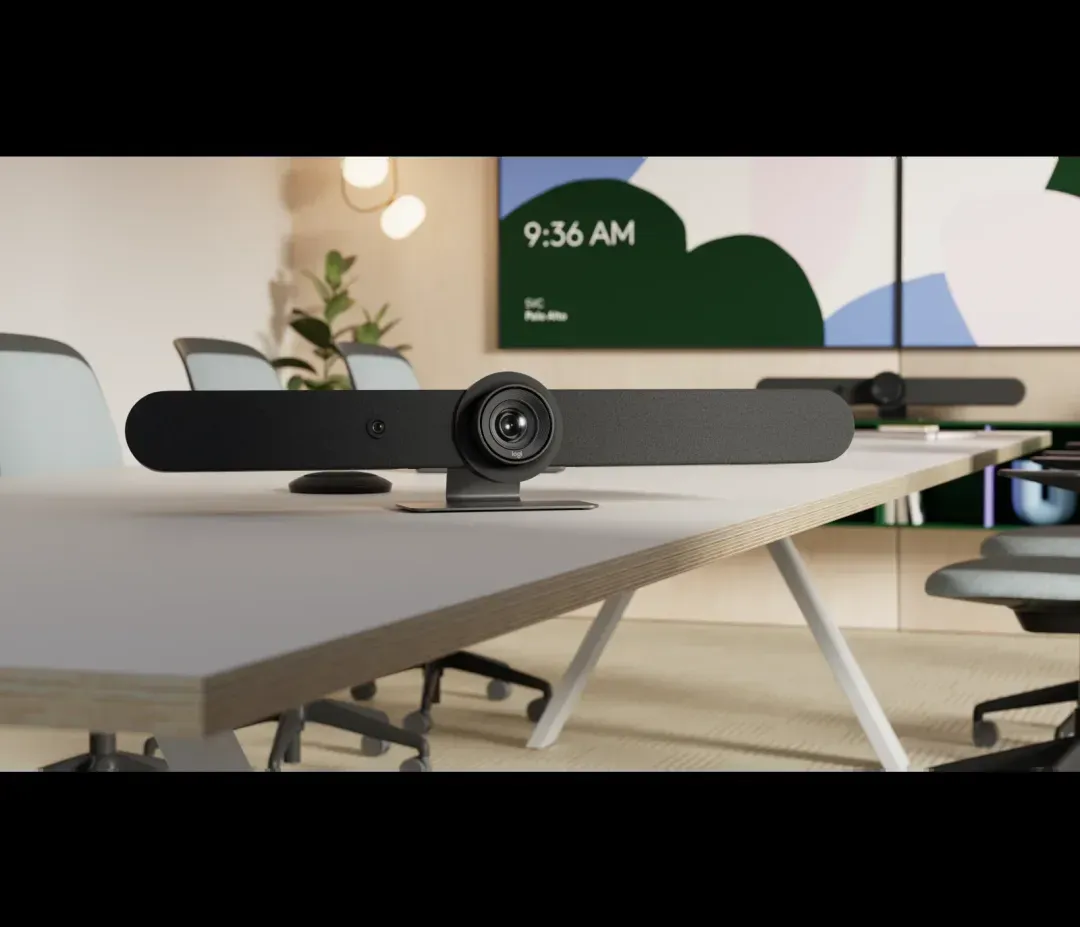
Rally video bars and camera systems, Tap controllers and suitable BYOD accessories provide options for different room workflows. Explore our specialist guide for product selection and installation detail.
Explore Logitech conferencing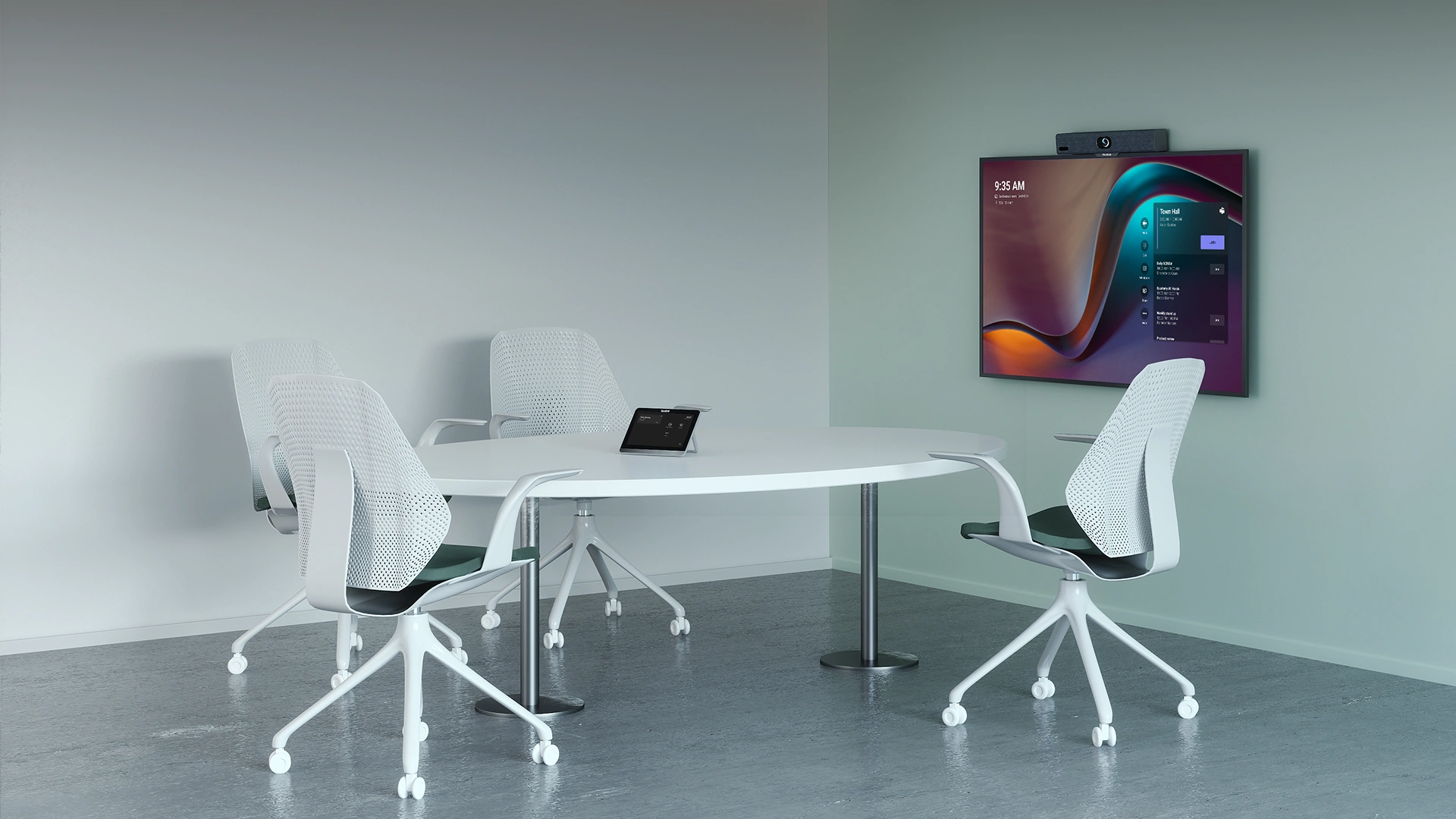
MeetingBar systems, MVC configurations and collaboration displays provide several ways to build a room. Confirm the platform edition, controller and current Australian bundle together.
Explore Yealink conferencing
All-in-one video bars, USB peripherals and modular room systems provide options across different spaces. Selection depends on the required platform, audio coverage and camera arrangement.
Discuss a Poly configuration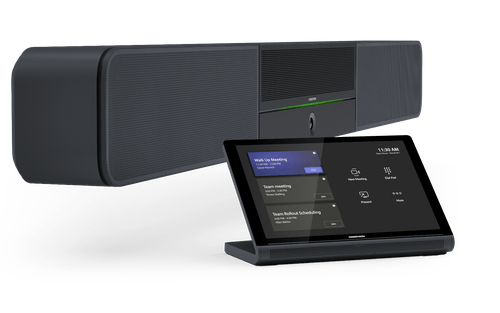
Conferencing systems for Teams or Zoom environments, with BYOD available on suitable configurations. Broader room control and integration are planned as part of the complete AV design.
Explore Crestron integrationRoom devices can support different deployment and meeting modes. Existing Cisco estates and specialist spaces require careful review of registration, licences and the intended user experience.
Explore the NCAT integration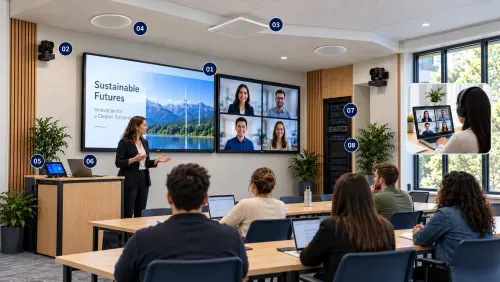
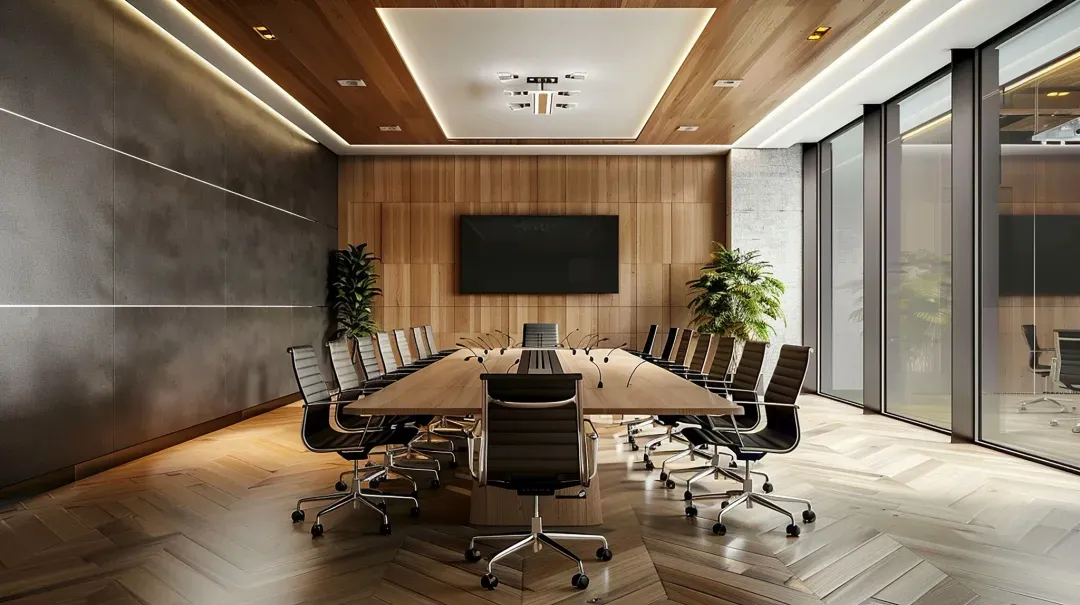
Audio processing, cameras and room control can extend conferencing into larger, divisible or specialist rooms. Q-SYS is the AV integration layer; the meeting platform and certified signal path are selected separately.
Explore Q-SYS integrationImages show manufacturer products and illustrative room applications; they do not imply that every illustrated space is a Masters Voice project. Product availability and supported configurations are confirmed during design.
A Teams Room joining a Zoom invitation is different from a laptop running Zoom through a USB camera. Both can be useful, but the controls, sharing options and meeting experience may differ.
| Meeting route | How it works | What to confirm |
|---|---|---|
| Native room meeting | The room runs its selected meeting platform. | Room account, licence, controller, device certification and calendar. |
| Third-party guest / interop join | The room joins an invitation from another service using a supported join method. | Platform support, policy, network access, content sharing and feature differences. |
| Laptop BYOD / BYOM | The laptop runs the meeting application and uses supported room peripherals. | Laptop compatibility, USB connection, device selection, display path and return to native mode. |
We test the meeting types your people actually use: internal calls, customer invitations, guest presenters and shared content. Where required, we agree a fallback that users can understand.
Wireless presentation sends content to a display. Wireless conferencing also gives a laptop access to supported cameras and audio. A system that does one does not automatically do the other. Wired options, adaptors, drivers and USB-C capabilities are checked in the design.
Plan microphone coverage for the actual seating and presenter positions. Check speech clarity and acoustic echo cancellation with someone at the far end.
Choose camera views around table depth, participant positions and room activity. Test framing so it helps the conversation rather than distracting from it.
Check that remote participants receive the presentation and local participants can read it. Decide whether one or two displays fit the required workflow.
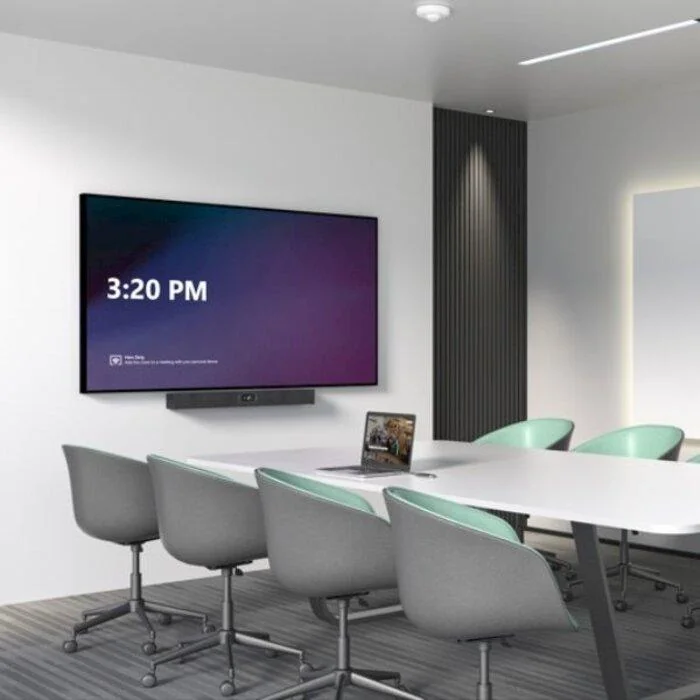
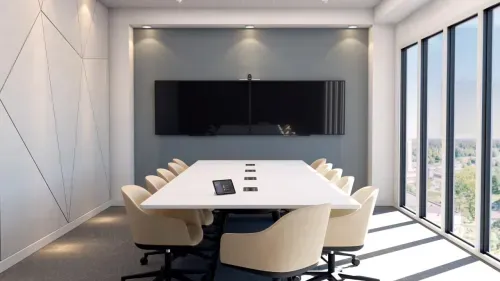
Internal meetings, customer calls and shared presentations need straightforward joining and dependable camera and audio coverage.
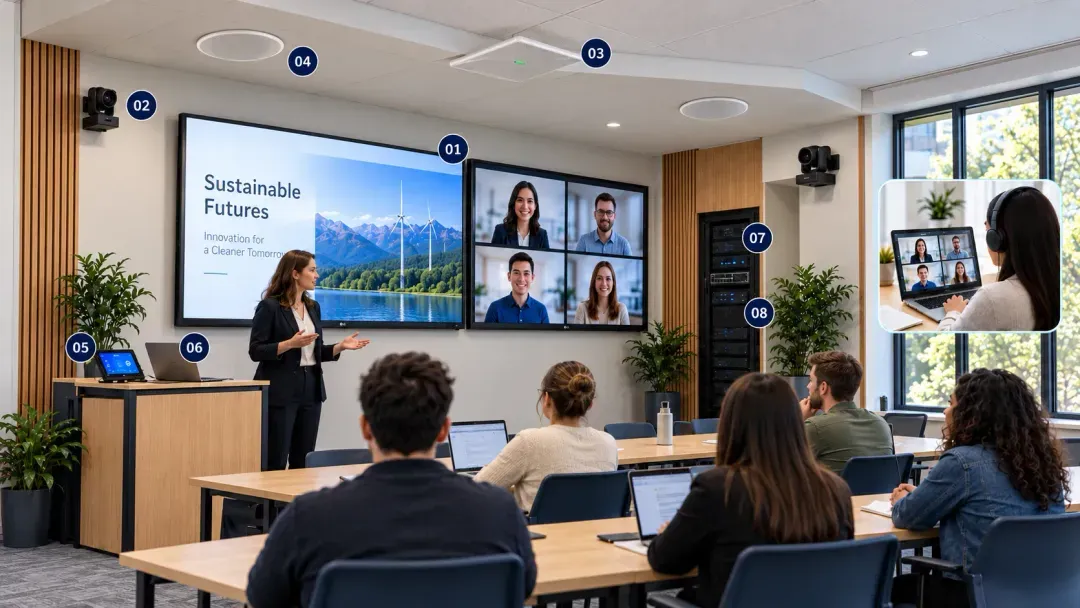
Corporate AV applicationsPresenters, seated participants and remote learners may need different camera views, audio coverage and content-sharing paths.
Explore HyFlex classroom AVHearing rooms and controlled environments need requirements-led design, with conferencing, recording, accessibility and operational policies considered together.
Government AV capabilityRecording, transcription, AI features and security controls depend on the platform, licensing and your organisation’s policies. Specialist requirements are assessed individually.
Map applications, guest meetings, participant positions and existing equipment.
Confirm the platform, hardware, connections, licences and IT responsibilities.
Coordinate equipment, AV cabling, power and network requirements.
Test real calls, shared content, guest joins and agreed room modes.
Provide practical instructions, configuration records and support options.
Commissioning should prove the required workflows, not simply confirm that devices power on. We agree acceptance checks around your platform and operating requirements.
Discuss your conferencing requirements ↗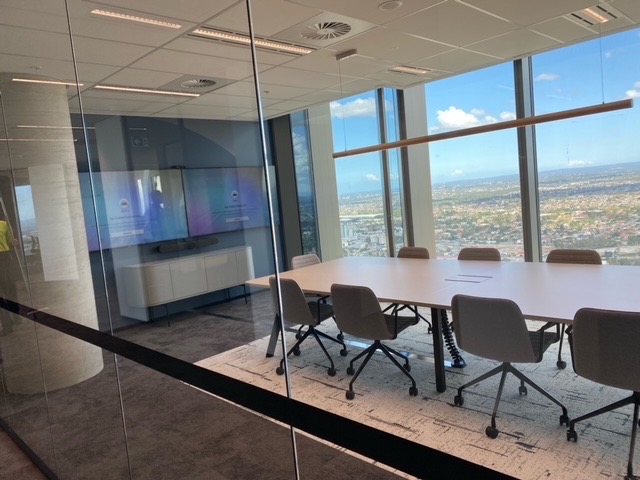
Meeting rooms with Logitech conferencing and flexible training spaces with Q-SYS processing and room control show how a workplace can combine straightforward meetings with more complex AV requirements.
Explore the BAT workplace projectFour purpose-built hearing-room systems brought together conferencing, professional audio, cameras, presentation, recording and hearing assistance within a coordinated AV environment.
Explore the NCAT case studyThe BAT image is from the project; the NCAT card image illustrates a conferencing context. Visit each case study for project-specific detail.
Room technology changes with software updates, equipment wear and new user needs. Define ownership for device management, IT access, maintenance and fault escalation before support is needed.
Agree room standards, approved hardware, naming, user instructions and acceptance checks. Consistency helps people move between rooms and gives support teams a clearer starting point.
Support hours, monitoring, subscriptions and service targets are scoped to your systems and location.
Masters Voice brings room technology and supporting infrastructure into one delivery scope. Discuss your site, existing systems and IT requirements with our team.
Select a question to expand the answer.
Microsoft Teams, Zoom, Webex and Google Meet are meeting platforms. Logitech, Yealink, HP Poly and Crestron provide room hardware or systems that support particular platform configurations. We choose the platform workflow first, then confirm a suitable hardware combination and current certification where required.
A dedicated room system suits frequent meetings on a standard platform and can provide calendar-based joining. BYOD uses the host laptop and offers application flexibility, with more reliance on the user device and connection. A hybrid design can combine a native room workflow with an agreed laptop fallback.
Supported Teams Rooms configurations can join third-party meetings through enabled guest-join or SIP options. Features, licences, mailbox settings, policies and network requirements differ. We confirm the required meetings and test the actual join and content-sharing experience before handover.
A compatible BYOD connection can allow the laptop to run different conferencing apps while using the room camera and audio. Native room systems and guest-join options have different capabilities. We confirm which platforms you host on, which you join as a guest and what functionality you need.
No. Table depth, participant positions, microphone coverage, camera views, acoustics and room modes all matter. A compact room may suit an all-in-one video bar; a larger, divisible or specialist space may need separate cameras, microphones, processing and control.
Dedicated room platforms generally require the appropriate room account and licensing. Platform features, device management and interoperability can involve additional subscriptions. We identify these requirements with your IT team and clarify what is included in the proposal.
No. Wireless presentation shares content to a display. Wireless conferencing also connects the laptop to supported room cameras and audio devices. We specify and test these as separate workflows, including laptop compatibility and any required adaptor or software.
The agreed scope can include equipment selection, installation, AV cabling, electrical and network coordination, device configuration, call testing, user instructions and handover. We confirm room accounts, licensing, IT responsibilities and any exclusions before the project begins.
Yes. We review the current equipment, available configuration, user workflow and recurring problems. An improvement may involve audio, camera placement, laptop connectivity or configuration rather than a complete replacement. Support for inherited systems depends on compatibility and access.
Yes. Ongoing AV support and maintenance can be scoped around your systems, operating hours and site requirements. Remote diagnostics, planned visits and response expectations are agreed separately. Our AV Support and Managed Services page explains the available approaches. Explore AV support services ↗
Tell us which applications you use, how many people join and what is getting in the way. We will help define the platform, equipment and room workflow.
Call 1300 804 320 or send your project requirements.