Microsoft Teams Room
July 13, 2026
arrow up right

Microsoft Teams Rooms vs BYOD | AV Guide

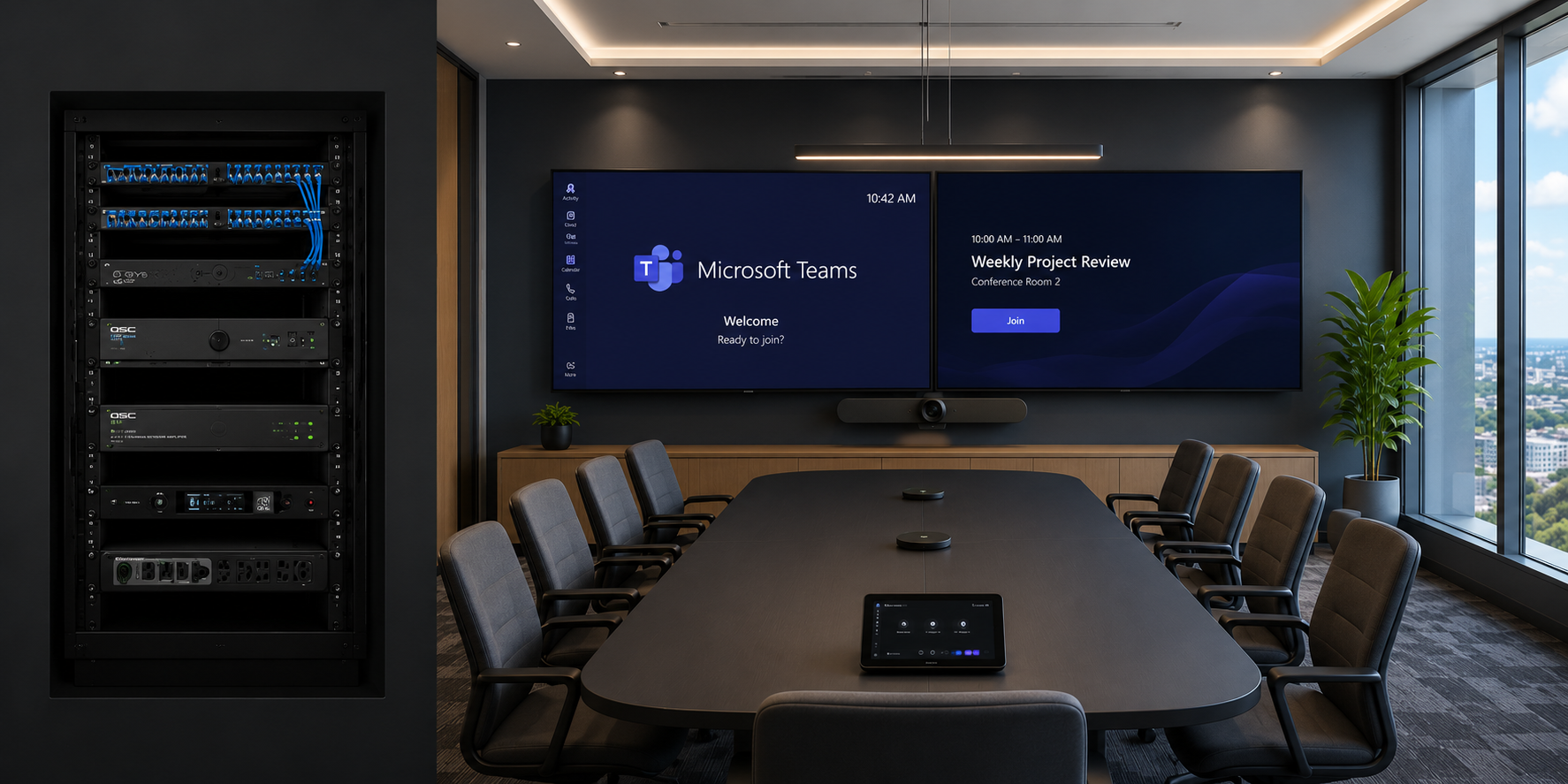
Microsoft Teams meeting room with commercial displays and professional video conferencing

Microsoft Teams Rooms Sydney

Microsoft Teams Rooms vs BYOD Meeting Rooms: Which Is Right for Your Organisation?

A dedicated Microsoft Teams Room and a BYOD meeting room can both support hybrid meetings, but they create very different user, management, licensing and support experiences. This guide explains where each approach works best and how to choose the right room standard.

Written by Mike Tiryaki Masters Voice Technology Updated July 2026

Dedicated Room Collaboration

A Microsoft Teams Room is a dedicated meeting-room system—not a shared laptop.

A Microsoft Teams Room is a purpose-built video conferencing system that signs into Microsoft Teams through a dedicated room resource account. It normally includes a room controller, computing platform, commercial display, camera, microphones and loudspeakers.

Scheduled Teams meetings appear on the room controller. A participant enters the room, selects the meeting and joins without connecting a personal laptop to the camera or audio system.

The room can also support content sharing, ad-hoc calls, calendar booking, approved third-party meeting workflows and centralised device management, depending on the hardware, licence and configuration.

Masters Voice Technology designs and installs Microsoft Teams Rooms and commercial meeting-room AV systems across Sydney and New South Wales.

01

Room resource account

The room has its own calendar, identity and Microsoft Teams Rooms licence.

02

Touch controller

Users can join scheduled meetings, make calls and control room functions through a consistent interface.

03

Certified room hardware

Cameras, microphones, loudspeakers and room systems are selected for compatibility with the Teams Rooms platform.

04

Central management

IT teams can view compatible devices, software status and room health through Microsoft management tools.

The main benefit is consistency.

Employees can use the room in the same way each day without relying on the meeting organiser’s laptop, USB drivers, battery level or local conferencing settings.

Bring Your Own Device

A BYOD room uses the participant’s laptop to run the meeting.

The room provides the display, camera, microphones, loudspeakers and presentation connections, while the user opens Microsoft Teams, Zoom, Webex, Google Meet or another platform on their own computer.

01

Connect the laptop

The user connects through USB, USB-C, HDMI or an approved wireless conferencing solution.

02

Select room peripherals

The meeting application must use the room camera, microphone and loudspeaker instead of the laptop’s built-in devices.

03

Run any supported platform

The laptop can generally join whichever meeting platform is required, subject to the user’s account, software and browser.

BYOD can be an effective option for small rooms, client-facing meeting spaces and organisations that regularly join several different conferencing platforms.

Its success depends on making the connection process obvious. Users should not need to find loose adaptors, change hidden settings or disconnect equipment from the rear of the display.

Read How to Design a Meeting Room That Actually Works for guidance on room audio, camera views, displays, connections and simple user operation.

Compare the Complete User Experience

Microsoft Teams Rooms and BYOD solve different workplace requirements.

The best option depends on how frequently the room is used, which meeting platforms are common, how much consistency users need and how the organisation intends to manage and support the room.

Consideration Microsoft Teams Room BYOD meeting room
Meeting computer Dedicated room computing platform or certified appliance. The participant’s laptop runs the meeting.
Joining a Teams meeting Scheduled meeting normally appears on the room controller for one-touch joining. User opens the invitation or Teams application on their laptop.
User consistency Provides a repeatable room interface independent of the organiser’s laptop. Experience varies with laptop model, software, drivers and user settings.
Platform flexibility Native Teams experience with supported guest-join and interoperability options. Can generally use any conferencing platform available on the laptop.
Room calendar Dedicated room resource account and calendar integration. The room may still be booked, but the meeting runs from the user’s account.
Licensing Requires a Microsoft Teams Rooms Basic or Pro licence. Normally relies on the meeting organiser’s existing conferencing licence.
Central management Compatible room systems can be monitored and managed through Microsoft tools. Room peripherals may be managed separately, but the laptop is outside the room system.
Visitor meetings Supported guest-join features vary by platform, room system and configuration. Visitors can normally run the meeting from their own laptop.
Initial cost Generally higher because it includes dedicated room computing, controller and licensing. Generally lower for a simple room because the user supplies the meeting computer.
Best fit Frequently used Teams-standardised rooms requiring consistency and management. Smaller, lower-use or multi-platform rooms where laptop operation is acceptable.

The lowest equipment price does not always create the lowest operating cost.

A room that regularly requires IT assistance, spare adaptors or repeated user setup may cost less to install but more to operate over its lifecycle.

Native Teams Collaboration

Choose Microsoft Teams Rooms when consistency matters more than laptop flexibility.

Dedicated Teams Rooms are strongest in organisations where Microsoft Teams is the primary meeting platform and the rooms are used frequently throughout the working day.

  • Most internal meetings are hosted in Microsoft Teams.
  • Staff need to enter the room and join with one touch.
  • The room is used frequently by different employees.
  • IT needs visibility of room devices and software condition.
  • The organisation wants consistent small, medium and large room standards.
  • Room calendars and resource accounts are already managed through Microsoft 365.
  • Meetings are important enough to justify dedicated room technology.
  • Centralised support, updates and asset records are required.

Teams Rooms are particularly valuable across multi-room workplaces.

A repeatable room interface allows employees to move between huddle rooms, boardrooms and training spaces without learning a different connection process in every location.

Explore Masters Voice Technology’s corporate AV and Microsoft Teams Room capability .

Flexible Laptop-Based Conferencing

Choose BYOD when platform flexibility and a simpler room architecture are the priorities.

BYOD can provide a practical and cost-effective experience when users are comfortable connecting their laptop and the organisation does not require a dedicated room operating system or advanced central management.

01

Multi-platform organisations

Staff regularly join meetings hosted in Teams, Zoom, Webex, Google Meet or client-specific platforms.

02

Visitor-led meetings

Clients, consultants or external presenters frequently lead meetings from their own devices.

03

Small huddle spaces

The room is compact, used by a small number of people and does not require extensive control or management.

04

Occasional-use rooms

The room is not used frequently enough to justify dedicated compute, room licensing and a permanent controller.

05

Presentation-first spaces

Local laptop presentation is more common than scheduled video conferencing.

06

Lower initial budget

The organisation can accept a user-led connection workflow in exchange for a simpler initial installation.

BYOD still needs commercial-grade design.

Long USB and HDMI distances, cable access, power, laptop charging, audio echo cancellation and device compatibility must still be planned professionally. A loose USB cable does not automatically create a reliable BYOD room.

A Hybrid Room Strategy

A dedicated Teams Room can also provide a BYOD or guest-meeting pathway.

Many organisations want the consistency of native Teams Rooms without preventing employees or visitors from using other meeting platforms. This can be addressed through supported interoperability and connection options.

Microsoft Interoperability

Direct Guest Join

Supported Teams Rooms can join approved third-party meetings such as Zoom and Webex through Microsoft’s guest-join workflow.

Laptop Connection

USB passthrough or BYOD mode

Compatible systems can allow a connected laptop to use the room’s camera, microphones and loudspeakers.

Content Sharing

HDMI or wireless presentation

Users can share local laptop content without transferring control of the entire meeting to the laptop.

These capabilities vary between manufacturers, Windows and Android platforms, firmware versions, licences and meeting services. They must be confirmed before the room is specified.

A useful design brief should identify which external platforms must be supported, how often they are used and whether visitors need access to the room’s full camera and audio system.

Masters Voice Technology can integrate Microsoft Teams Rooms with Crestron Flex and custom room control , Logitech room systems, Q-SYS audio and other certified commercial AV components.

Select the Platform Around the Room

Microsoft Teams Rooms are available on Windows and Android platforms.

Neither platform is automatically better for every room. The correct choice depends on room complexity, hardware preference, integration, management requirements and the features needed by the organisation.

Teams Rooms on Windows

Flexible for larger and highly integrated rooms

  • Commonly selected for boardrooms and complex custom AV environments.
  • Supports certified room compute and touch-console combinations.
  • Can suit rooms requiring extended peripherals and control integration.
  • Often considered where advanced room functions and detailed management are required.
  • Hardware, driver and operating-system management must be planned.

Teams Rooms on Android

Appliance-based deployment for suitable room types

  • Frequently delivered through an all-in-one video bar or room appliance.
  • Can provide a compact architecture for small and medium rooms.
  • Reduces the number of separate room components in suitable applications.
  • Management and feature availability depend on the selected certified platform.
  • Peripheral and custom-integration options should be confirmed before selection.

Feature availability can change at different times on each platform.

The room design should be based on features that are currently supported by the selected hardware and Microsoft Teams Rooms platform—not only features shown on a future roadmap.

One Product Does Not Fit Every Room

The room dimensions, table and acoustics should determine the hardware.

A video bar that performs well in a six-person huddle room may not provide suitable microphone pickup, camera framing or loudspeaker coverage in a long boardroom or divisible training space.

2–6 People

Huddle room

  • Single commercial display
  • Compact certified video bar
  • Table or wall controller
  • Local HDMI or USB-C presentation
  • Simple room booking

6–12 People

Standard meeting room

  • Single large or dual displays
  • Premium video bar or separate camera
  • Expanded microphone coverage
  • Content-sharing connection
  • Improved room audio

10–24 People

Boardroom

  • Dual commercial displays
  • Optical or intelligent camera
  • Ceiling or table microphones
  • DSP acoustic echo cancellation
  • Distributed loudspeakers
  • Touchscreen room control

20–80+ People

Training or divisible room

  • Multiple displays or projection
  • Meeting and presenter cameras
  • Ceiling and wireless microphones
  • Room-combine automation
  • Independent and combined modes
  • Custom programming and commissioning

Room size is only a starting point. Glass surfaces, table length, ceiling height, participant positions, ambient noise and camera sightlines must also be assessed.

Larger rooms may benefit from Q-SYS audio processing and room control or Crestron programming and Teams Room integration .

Plan the Microsoft Environment

A Teams Room requires more than certified AV hardware.

The room must be coordinated with Microsoft 365 administration, network services, security policy, device management and the organisation’s ongoing support process.

01

Room resource account

Each room requires an appropriately configured resource account, calendar and sign-in arrangement.

02

Teams Rooms licence

The room system must be assigned Microsoft Teams Rooms Basic or Microsoft Teams Rooms Pro.

03

Network connectivity

The room needs reliable wired network access, internet connectivity and any required firewall, proxy or VLAN configuration.

04

Device management

Responsibility for updates, health monitoring, configuration and fault escalation should be assigned before deployment.

05

Security policies

Shared room devices should align with Microsoft Entra, conditional access and the organisation’s approved security model.

06

Calendar and booking

Room names, booking rules, panel integration and resource permissions should be standardised across the workplace.

Microsoft Teams Rooms Basic

Core room experience

Basic supports core certified-room meeting functions and is available at no additional licence cost for up to 25 eligible room systems within an organisation.

  • Teams meeting join
  • Content sharing
  • Core video and audio operation
  • Basic inventory and monitoring
  • Direct Guest Join for supported platforms

Microsoft Teams Rooms Pro

Advanced experience and management

Pro is designed for organisations requiring more advanced room features, management, analytics, security and larger deployments.

  • Advanced room layouts and dual-display functions
  • Enhanced intelligent audio and video features
  • Remote configuration and detailed device information
  • Custom health alerts and analytics
  • Additional security and management services

Confirm licensing when the project is designed and again before deployment.

Microsoft licensing, pricing and feature inclusions can change. The organisation’s Microsoft administrator or licensing partner should confirm the final licence arrangement before the room is commissioned.

Compare the Complete Installed Room

A Teams Room usually costs more initially, but price should be compared across the lifecycle.

The room budget depends on the display, camera, microphone architecture, room controller, platform, infrastructure, programming, installation and support—not only whether the room is labelled Teams Rooms or BYOD.

01

Dedicated room components

Teams Rooms normally add a room compute platform, touch controller, resource account and room licence.

02

Audio and camera coverage

Larger rooms may require ceiling microphones, DSP processing, distributed loudspeakers and professional cameras regardless of platform.

03

Displays and content

Dual displays, larger screens, projection and content-ingest requirements can increase either room type’s cost.

04

Electrical and data work

Display power, table boxes, network outlets, cable pathways and rack infrastructure may be required.

05

Programming and commissioning

Custom control, DSP tuning, divisible-room logic and detailed testing add professional-service requirements.

06

Support and management

Licensing, remote monitoring, preventative maintenance, spares and onsite response should be considered in the operating budget.

For current Sydney planning ranges, review the Meeting Room AV Cost Sydney guide .

Eligible projects can also be structured through TechFlow360 AV as a Service , combining design, installation, support and planned technology refresh within a managed monthly agreement.

Avoid Designing Around a Product Box

Common mistakes can make both Teams Rooms and BYOD systems difficult to use.

Most meeting-room problems are caused by incomplete room planning rather than a single defective product.

Teams Room mistakes

  • Selecting hardware from the room capacity alone without checking dimensions.
  • Using a video bar beyond its practical microphone and camera range.
  • Failing to prepare the room resource account before commissioning.
  • Choosing Basic or Pro without reviewing the required features.
  • Assuming every third-party meeting workflow is automatically supported.
  • Not assigning responsibility for updates, monitoring and support.

BYOD room mistakes

  • Providing a loose USB cable without clear connection instructions.
  • Extending USB or HDMI beyond supported distances using unsuitable cables.
  • Failing to provide the adaptors required by common laptop types.
  • Allowing users to select the laptop microphone instead of the room system.
  • Creating audio feedback through duplicated laptop and room audio paths.
  • Assuming every visitor’s laptop will support the same connection method.

Poor room acoustics affect both approaches.

A dedicated room platform cannot compensate fully for excessive echo, noisy air conditioning, poor microphone placement or strong backlighting. The physical room remains part of the AV system.

Read the AI-Ready Meeting Rooms guide for additional guidance on intelligent cameras, microphone coverage, management, security and meeting-room AI.

Microsoft Teams Rooms in Practice

British American Tobacco Australia: consistent Teams meetings and flexible training spaces

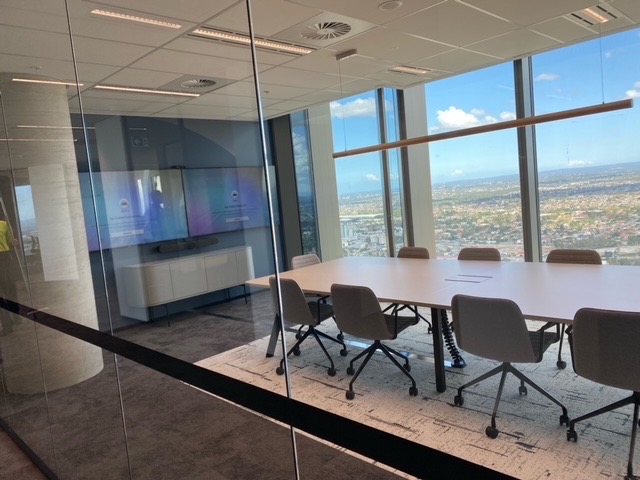
Microsoft Teams Room with Logitech video conferencing equipment at British American Tobacco Australia

Corporate AV Project · Parramatta

Different room types with one consistent workplace experience

Masters Voice Technology delivered Microsoft Teams meeting rooms and flexible training spaces for British American Tobacco Australia’s Parramatta workplace.

The ten-seat meeting room uses dual commercial displays and a Logitech Rally Bar, while the smaller six-seat room uses a Logitech Rally Bar Mini. Both rooms use Logitech Tap controllers to provide a familiar Teams meeting workflow.

Two divisible training rooms use Q-SYS to coordinate audio, cameras, displays, user control and automatic room-combine operation.

  • Dual-display Microsoft Teams meeting room
  • Compact single-display meeting room
  • Logitech Rally Bar and Rally Bar Mini
  • Logitech Tap room interfaces
  • Q-SYS audio and room-combine control
  • Ceiling microphone and distributed-speaker coverage
  • Independent and combined training-room modes
  • Wireless presentation in the secondary room

Select the Operating Model First

Which meeting-room approach should your organisation choose?

Choose Microsoft Teams Rooms When

The room needs a consistent native Teams experience

  • Microsoft Teams is the primary meeting platform.
  • The room is used frequently throughout the day.
  • One-touch calendar joining is important.
  • Many different employees use the room.
  • IT requires central management and room visibility.
  • The organisation is standardising several rooms.
  • The room is business-critical.
  • A dedicated room licence and account are acceptable.

Choose BYOD When

Laptop flexibility is more important than a native room platform

  • Users regularly switch between meeting platforms.
  • External visitors frequently host meetings.
  • The room is small or used occasionally.
  • Users are comfortable operating meetings from a laptop.
  • The organisation wants a lower initial room cost.
  • A dedicated room resource account is not required.
  • Local presentation is the most common use.
  • Central management requirements are limited.

A workplace can use both room types.

Many organisations use dedicated Teams Rooms for high-use meeting spaces and simpler BYOD systems for small, occasional-use or visitor-focused rooms. The objective is a deliberate room standard—not forcing every space into the same product package.

Microsoft Teams Rooms FAQs

Frequently asked questions about Microsoft Teams Rooms and BYOD

What is a Microsoft Teams Room?

A Microsoft Teams Room is a dedicated video conferencing system for a shared meeting space. It normally includes a room resource account, Teams Rooms licence, touch controller, compute platform, commercial display, camera, microphones and loudspeakers.

What is the difference between Microsoft Teams Rooms and normal Teams?

Normal Microsoft Teams runs through an individual user’s computer or mobile device. Microsoft Teams Rooms is designed for a shared physical meeting room and uses a dedicated room account, certified hardware and a shared room controller.

Is a Microsoft Teams Room better than BYOD?

Teams Rooms are generally better for frequently used, Teams-standardised rooms requiring one-touch joining and central management. BYOD may be better for smaller, occasional-use or multi-platform rooms where users are comfortable running meetings from their own laptop.

Does a Microsoft Teams Room need a licence?

Yes. A Teams Rooms device must be assigned a Microsoft Teams Rooms Basic or Microsoft Teams Rooms Pro licence. Standard individual Microsoft 365 user licences are not a replacement for a Teams Rooms licence on a shared room system.

What is the difference between Teams Rooms Basic and Pro?

Teams Rooms Basic provides core certified-room meeting, content-sharing and basic management functions for up to 25 room systems per organisation. Teams Rooms Pro adds advanced room experiences, management, analytics, security and intelligent audio and video capabilities.

Can a Microsoft Teams Room join Zoom or Webex meetings?

Supported Teams Rooms can join approved Zoom and Webex meetings using Microsoft Direct Guest Join. Availability and the precise user experience depend on the Teams Rooms platform, device, configuration and current service support.

Can users connect their laptop to a Microsoft Teams Room?

Many Teams Rooms support local content sharing, and some systems also provide USB passthrough or a dedicated BYOD mode. These capabilities vary by manufacturer and should be confirmed before the equipment is selected.

What equipment is required for a Microsoft Teams Room?

A typical system requires a certified Teams Rooms compute platform or appliance, room controller, commercial display, camera, microphones, loudspeakers, network connection and suitable power. Larger rooms may also require DSP audio, ceiling microphones, distributed speakers and custom control.

How much does a Microsoft Teams Room cost in Australia?

Cost depends on room size, display quantity, camera and microphone coverage, room controller, installation, electrical and data work, programming, commissioning and licensing. A small certified room generally costs more than a basic BYOD space, while boardrooms and divisible rooms require substantially more design and integration.

Can an existing meeting room be upgraded to Microsoft Teams Rooms?

Yes. Existing displays, speakers, cameras, cabling or racks may be retained where they remain supported, reliable and compatible. The room should be assessed before reuse is confirmed.

Does Masters Voice Technology install Microsoft Teams Rooms in Sydney?

Yes. Masters Voice Technology designs, installs, programs and supports Microsoft Teams Rooms, BYOD meeting spaces, boardrooms and divisible training rooms across Sydney and New South Wales.

Design Around How the Organisation Meets

The best room is the one employees can operate reliably.

Microsoft Teams Rooms provide consistency, dedicated room operation and central management. BYOD rooms provide platform flexibility and a simpler initial architecture. The correct choice should reflect the room workflow, users, platform strategy and support model.

Masters Voice Technology designs, installs and supports Microsoft Teams Rooms, BYOD meeting rooms, boardrooms and training spaces across Sydney and New South Wales.

Our team can assess your rooms, existing technology, Microsoft 365 environment, electrical infrastructure and data cabling before developing an appropriate small, medium and large room standard.

Contact Our Team

Talk to Masters Voice Technology about your next project.

Tell us about your organisation, site, existing technology and project requirements. Our team can assist with commercial audio visual design, installation, electrical and communications works, system upgrades, maintenance and managed support.

Project Enquiry

How can our team help?

Complete the details below and your enquiry will be emailed directly to the Masters Voice Technology sales team.

Thank you. Your enquiry has been sent to the Masters Voice Technology sales team. We will review the information and contact you shortly.

Your enquiry will be sent directly to sales@mastersvoice.com.au. Required fields are marked with an asterisk.

Ready to talk about your project?