Meeting Room AV Upgrades in Sydney: What Can You Keep?
Masters Voice Insights
Workplace

Meeting Room AV Upgrades in Sydney

See what you can reuse, what needs testing and when a full refresh makes sense for an existing meeting room.

{{wf:Author/Name|Dynamo}}
Written by Dane Lewis Technical Director | Communications & Audio Visual
Sydney boardroom at dusk overlooking the Opera House and Harbour Bridge
Masters Voice Insights · Workplace AV

Meeting Room AV Upgrades in Sydney: What Can You Keep?

A practical guide to testing an existing room, reusing equipment and deciding when a full refresh makes sense.

Written by Dane Lewis
Technical Director | Communications & Audio Visual
Executive summary

Start with the problem in the room

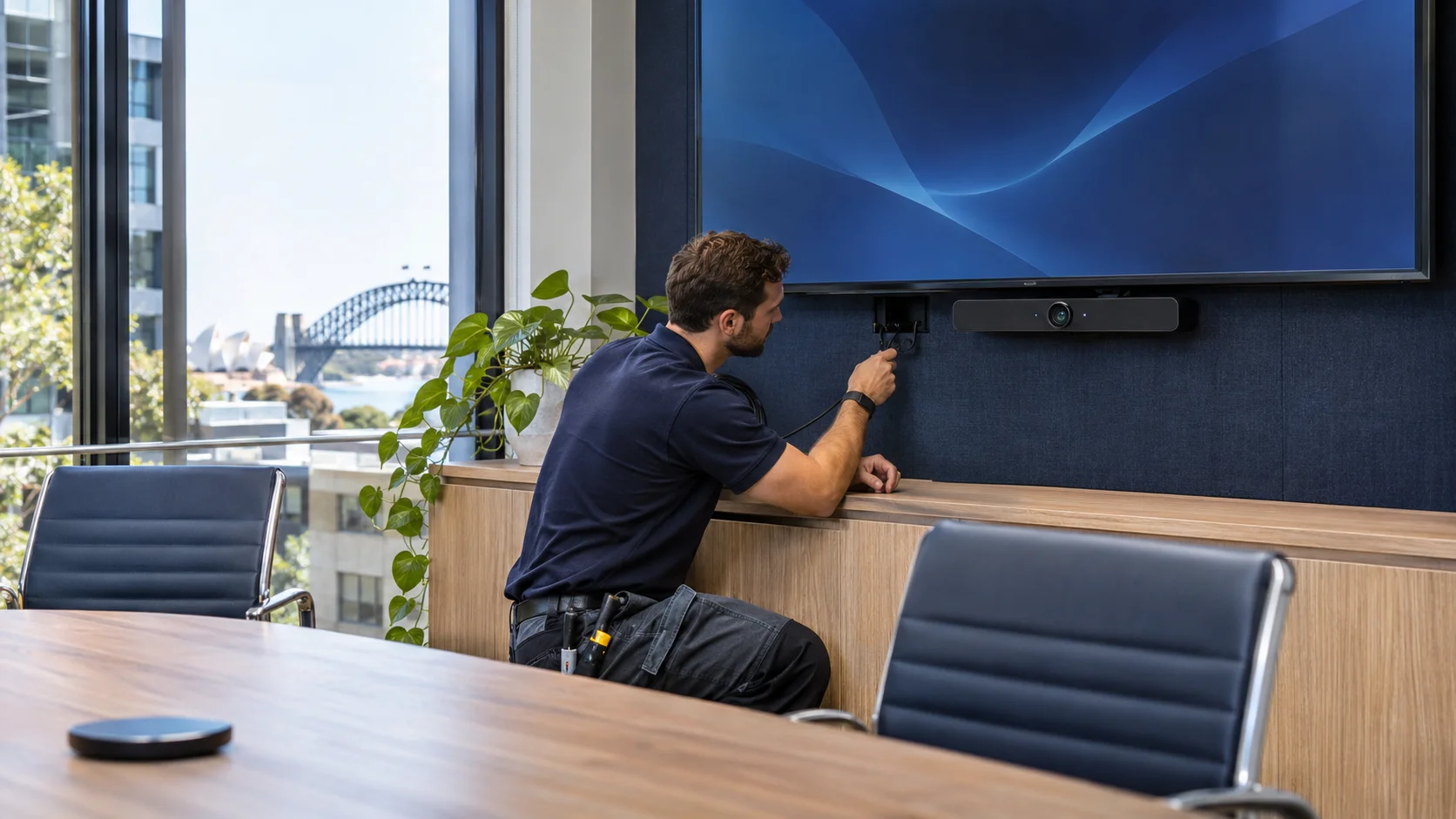
Five minutes before a client call, the display is on but the laptop cannot find the room camera. In the larger boardroom next door, the camera works and everyone on the call can see the table, but the person at the far end sounds distant. Both rooms need attention. The first may have a USB connection fault. The second may need better microphone coverage. Replacing both systems would be an expensive way to find out.

Can you upgrade a meeting room without replacing everything? Yes. Keep equipment that passes a condition, compatibility and support check. Test it with the proposed system before committing to reuse. Replace equipment that fails those checks or prevents the room from doing what people need it to do.

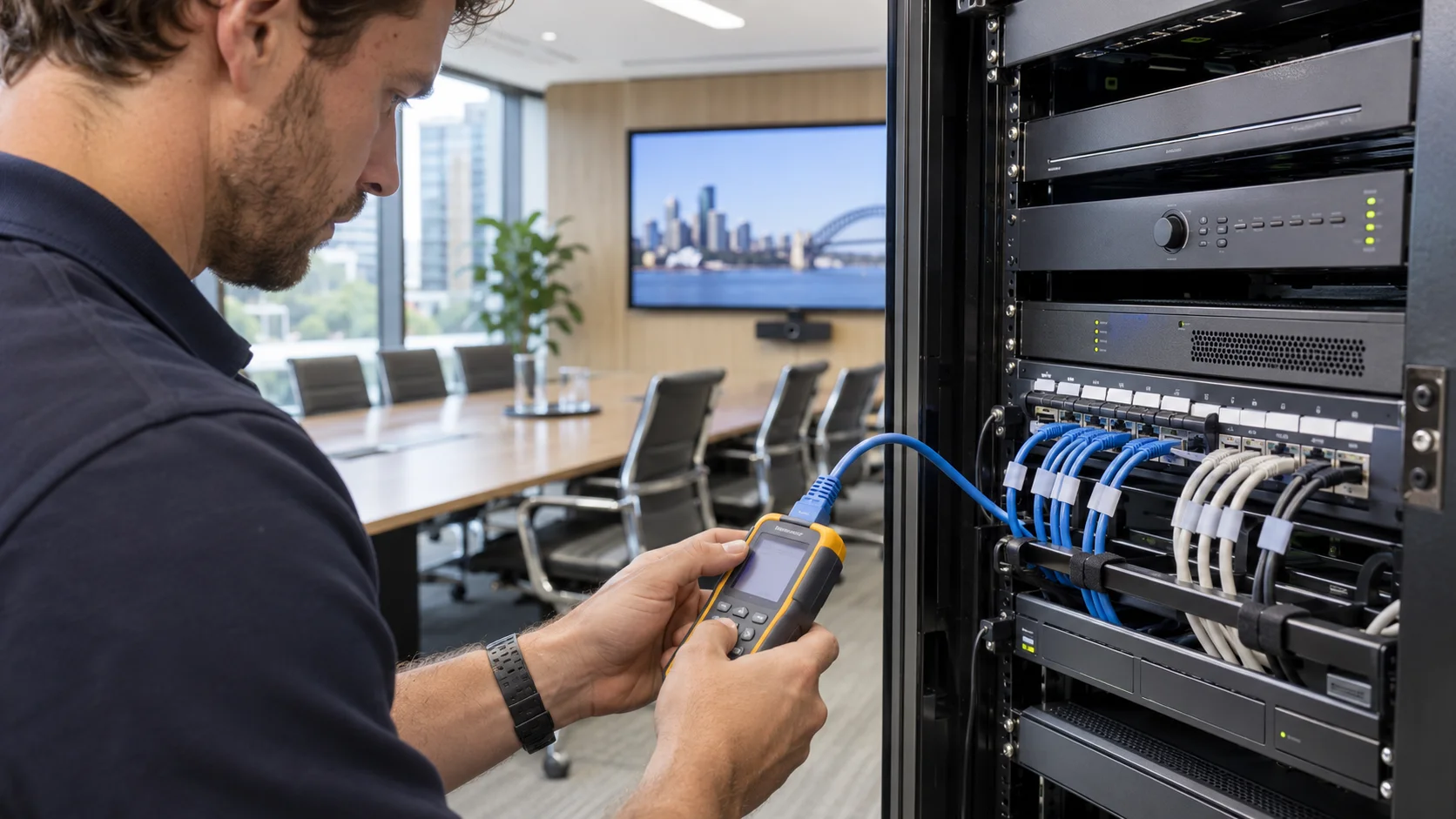
Technician testing an existing AV rack connection beside a commercial meeting room
Test the complete connectionIllustrative image
Room assessment

Start with a real call

Use a laptop your staff normally bring into the room and ask a colleague to join from outside it.

  1. Speak from the farthest seat. Ask your colleague whether they can hear each word clearly.
  2. Share a spreadsheet. Check that people at the back of the room and on the call can read it.
  3. Reconnect the laptop. Check whether the camera, microphone and display recover without help.
  4. Try a calendar invite. If there’s a dedicated console, join through the usual room workflow.

Record what failed and from where. For example, “Remote attendees couldn’t hear the farthest seat, but screen sharing worked.” Repeat the same test at handover.

Reuse checklist

What to keep, test or replace

Keep equipment that works reliably with the proposed setup and can still be supported.

Display and mount

Keep · Keep a readable display that wakes reliably and selects the correct input.

Test · Check the rear-seat view, standby behaviour and the mount’s condition and load rating.

Replace or update · Replace an undersized, unreliable or incompatible display.

Camera, microphones and speakers

Keep · Retain ceiling speakers if they’re in good condition and supported by the proposed audio design.

Test · Check camera coverage and speech clarity from every seat with a remote listener.

Replace or update · Upgrade devices that fail coverage or compatibility checks.

Cabling and extenders

Keep · Keep cable runs that work with the proposed equipment and signal formats.

Test · Test HDMI and USB separately, including adapters, extenders and a sleep-and-wake cycle.

Replace or update · Replace the failing cable or extender once you’ve isolated the fault.

Room controller and programming

Keep · Retain supported controls that still suit how people use the room.

Test · Confirm processor compatibility, firmware support and access to source files.

Replace or update · Allow for reprogramming and recommissioning if controls, audio routing or room-combine logic change.

Upgrade scenarios

Three rooms, three different upgrade scopes

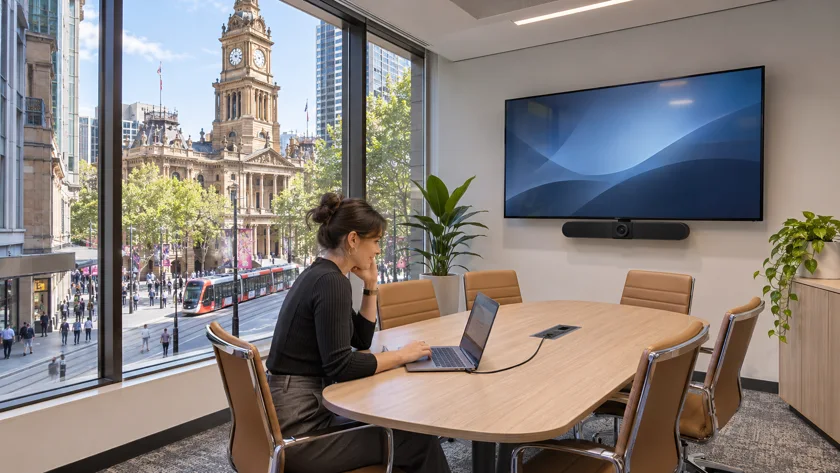
Six-seat meeting room with a laptop connected at the table, overlooking Sydney Town Hall and George Street
Sydney Town Hall

A six-seat room with an unreliable laptop connection

The display shows presentations clearly, but staff have stopped trusting the table connection. First, test the laptop directly against the room devices, then through the installed cable or extender. If the fault follows the installed path, a targeted cabling or connectivity upgrade may be sufficient. If staff also want one-touch joining, compare a dedicated room system with the existing laptop-led setup before choosing hardware.

Creative Activation · North Sydney. We retrofitted five meeting rooms with Yealink video bars, Microsoft Teams Rooms controls and wireless presentation, keeping the existing displays. All hardware was ready within five days of the client’s go-ahead.

See the five-room Yealink retrofit →

Read the Teams Rooms versus BYOD guide.

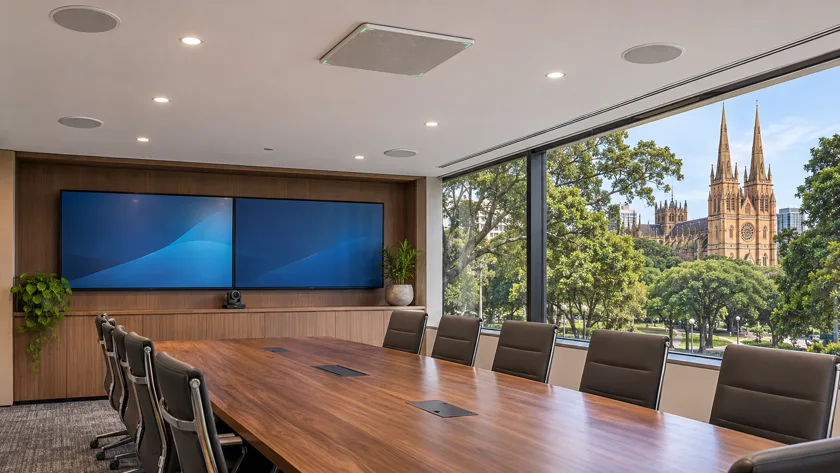
Boardroom with ceiling speakers and a ceiling microphone, overlooking St Mary’s Cathedral and Hyde Park
St Mary’s Cathedral and Hyde Park

A boardroom with ceiling speakers and poor remote audio

Ask whether people in the room struggle to hear remote speakers, or remote attendees struggle to hear people in the room. Those are different signal paths. For echo complaints, check the acoustic echo cancellation reference alongside microphone placement and gain. Confirm how the proposed platform supports external audio before promising to retain an amplifier or DSP. Recommission the room with a remote listener and test speech from every seat.

See boardroom AV options in Sydney.

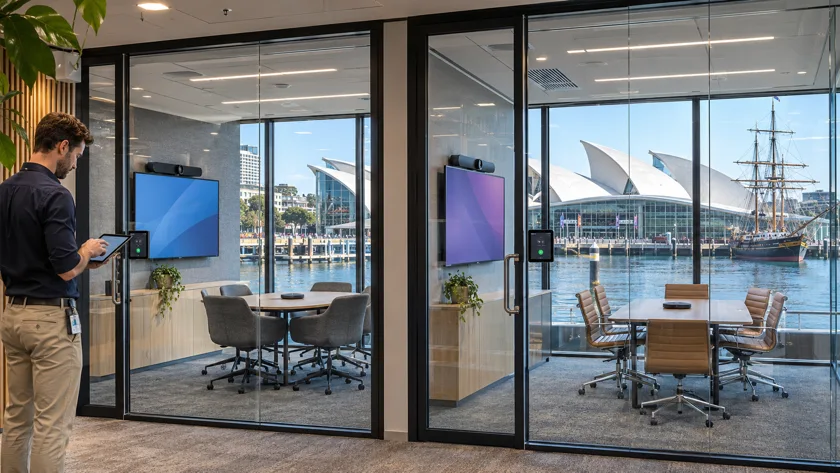
Technician checking two meeting rooms overlooking Darling Harbour and a historic tall ship
Darling Harbour

Several ageing Teams Rooms across one office

List the room system, operating platform, cameras, microphones and controllers already in each room. Group rooms by size and use, then pilot one representative room. Standardise the join and presentation experience while retaining proven infrastructure where it fits. Keep a schedule of retained assets and agree who owns support after handover.

Explore managed AV support and maintenance.

Planning and handover

Compare a targeted upgrade with a full refresh

Ask each installer to price the same scope and state what stays, what changes and what needs testing before the quote can be finalised. Include labour for removing and reinstalling retained equipment, any programming needed, out-of-hours work, commissioning and warranty coverage. A component that saves money upfront can still increase labour or leave you with a hard-to-support room.

Ask for the handover checks in writing. At a minimum, cover the intended join workflow, content sharing, remote speech clarity and camera coverage. For a mixed Teams Room and BYOD setup, verify both operating modes with representative staff laptops.

Use the Sydney meeting room AV budget guide for indicative installed costs and the AV Project Planner to prepare a room brief.

Frequently asked questions

What to know before upgrading a meeting room

Can we keep our existing display when upgrading to a Teams Room?

Often, yes. Check that shared content is readable from the back, the input and resolution suit the proposed system, and the display reliably wakes and switches sources. Confirm control compatibility before retaining it.

Can we reuse our ceiling speakers for video meetings?

Potentially. Check the speakers, amplifier and signal path, and confirm that the proposed conferencing platform supports the external audio design. Test remote speech, room playback and echo cancellation during commissioning.

Do we have to replace the cabling when upgrading meeting room AV?

Existing cabling can stay if it passes inspection and works reliably with the proposed devices and signal formats. Test the complete path, including any adapters and extenders, with the laptops and room equipment you plan to use.

How do we decide whether to upgrade or replace the whole room?

Choose a targeted upgrade when the fault can be isolated and retained equipment is compatible and supportable. Compare a full refresh when multiple components are failing, programming cannot be maintained or the room needs a substantially different conferencing workflow.