
Workplace · Google Meet and Microsoft Teams
Your Room Uses Google Meet, but the Invite Is for Teams. What Happens Next?
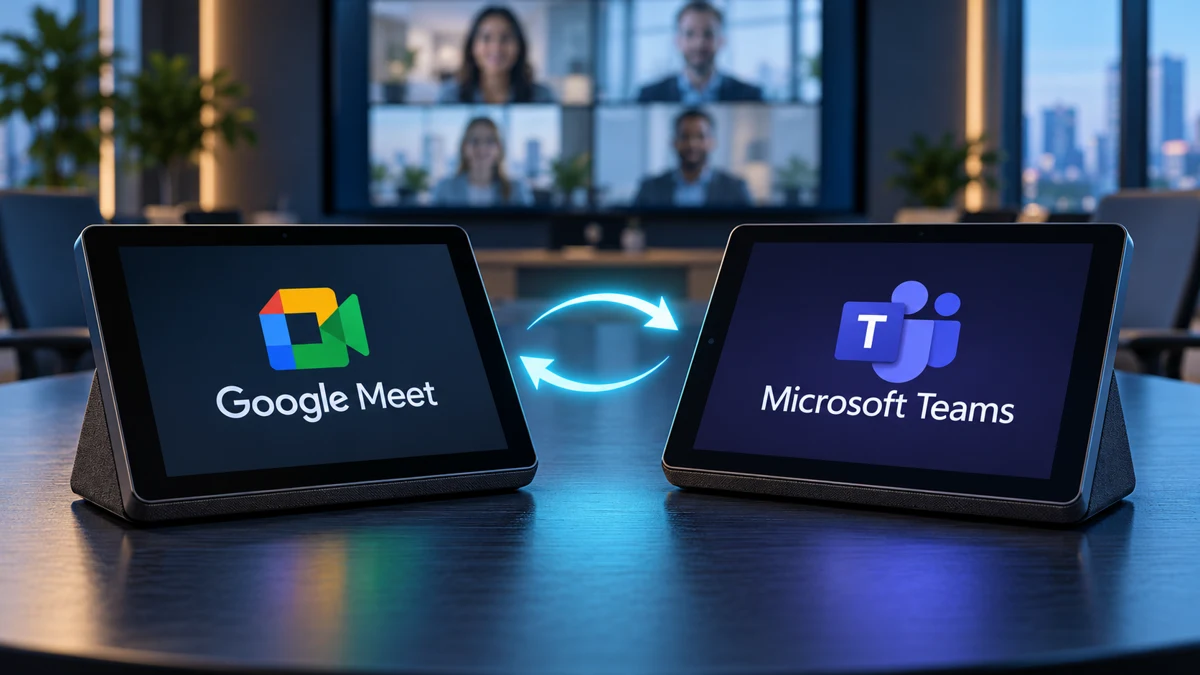
Or your Teams Room receives a Google Meet invite. Here is how joining, room audio and screen sharing work in both directions.
Or your room runs Microsoft Teams, and a client sends a Google Meet invitation.
You walk into the meeting room, ready for a client call. The screen is on, the camera is ready and the room works well for your usual meetings. Then you realise the invitation uses a different platform.
Can you join from the room controller? Will the room’s microphones and camera work? What happens when you need to present?
Can Google Meet rooms join Teams meetings—and Teams Rooms join Google Meet?
Yes. Supported Google Meet rooms can join Microsoft Teams meetings, and supported Teams Rooms can join Google Meet. The room keeps its usual platform and connects through guest joining. Hardware, software, administrator settings and the meeting host affect availability. Screen sharing and other features may differ from native meetings.
The room’s platform and the meeting platform are different things
A room configured for Google Meet normally uses its room account, calendar and controller for Meet calls. A Microsoft Teams Room does the equivalent within Microsoft’s environment.
Receiving an invitation from the other platform does not convert the room. Instead, a supported guest-join connection allows it to participate in that meeting.
Google announced general availability of Meet–Teams interoperability on Android/AOSP room devices on 1 October 2026. Google also documents Teams joining from ChromeOS-based Meet hardware. Check the installed hardware and software rather than assuming every room supports the same features. Read Google’s announcement.
Scenario 1: Your Google Meet room receives a Teams invitation
Your organisation uses Google Workspace and the room normally starts Google Meet calls. A customer sends a Teams invitation.
On supported Meet hardware, there are two main ways to join:
- From the room calendar: add the room to an event containing the Teams meeting details. Once recognised, the meeting can appear on the controller as a Teams call.
- Using the meeting details: choose Teams on the controller’s meeting-entry menu and enter the invitation’s meeting ID and passcode.
For some external invitations, Google recommends creating or duplicating a calendar event containing the Teams details and adding the room. Remove unnecessary attendees from a duplicate to avoid sending repeated invitations. See Google’s joining instructions.
The room joins as a guest using its conferencing equipment. The host’s admission process may still apply. Staff should allow time for admission rather than assuming a waiting screen means the equipment has failed.
If the call does not connect, record the message shown and ask IT to review device support, the effective interoperability setting, network access and the invitation.
Scenario 2: Your Teams Room receives a Google Meet invitation
Your organisation uses Microsoft 365 and staff normally join Teams meetings from the room controller. A consultant sends a Google Meet link.
On a supported and configured Teams Room, the Google Meet invitation can provide a join option on the room calendar. Depending on the system and configuration, joining by meeting ID may also be available.
Microsoft’s setup guidance requires the room to process external invitations, retain readable meeting details, permit access to the other service and enable the relevant third-party meeting provider. If the invitation reaches your personal calendar but never reaches the room, the controller cannot offer that scheduled meeting. Read Microsoft’s third-party meeting guidance.
Once connected, use the guest meeting controls provided by that workflow. Do not expect the complete native Teams interface during a Google Meet call.
If no join option appears, first check that the room accepted the booking and that the original Meet details remain in the invitation. IT can then investigate the room configuration and software.
What changes when you join the other platform?
| Question | Google Meet room → Teams | Teams Room → Google Meet |
|---|---|---|
| Does the room change its everyday platform? | No. It participates through a supported guest connection. | No. It participates through a supported third-party connection. |
| Can a calendar join button appear? | Yes, with recognised Teams details and the room added. | Yes, with supported software, external booking processing and provider settings. |
| Will it behave like a native meeting? | Expect a different feature set and controls. | Expect a different feature set and controls. |
| Can the usual HDMI cable send a presentation? | Google lists this as unsupported through built-in Teams guest joining. | Microsoft lists HDMI content sending as unavailable through Direct Guest Join. |
Screen sharing is the detail to check before the meeting
A successful video call does not prove your normal presentation cable can share content with remote participants.
Google’s built-in Teams comparison lists limitations including HDMI presentation and dual-screen operation. Microsoft also distinguishes receiving content from sending it through Direct Guest Join. Separate SIP-based interoperability services can have different capabilities and commercial requirements. Check Google’s feature comparison and Microsoft’s joining comparison for the chosen pathway.
One workflow to test is joining the same meeting from a laptop for presentation while leaving camera and audio with the room. Keep the laptop’s microphone and speakers disabled to prevent competing audio paths. Confirm the host permits this and ask a remote attendee to verify the shared content.
When should you run the meeting from a laptop instead?
If guest joining is unavailable or does not provide the required experience, a compatible laptop connection may be more suitable.
Here, the laptop runs Teams or Google Meet and uses the room’s camera, microphones and speakers through a supported USB connection. Display connections must also be arranged. Logitech documents USB, appliance and BYOD modes for Rally Bar systems, but the actual cabling and supported behaviour depend on the installation. Read Logitech’s explanation.
Do not assume a spare HDMI lead gives the laptop access to the room’s camera and microphones. Check the USB path, adaptors and laptop security settings, then test with the devices staff actually use.
Test both directions before staff depend on them
For a workplace that regularly meets across Google Meet and Teams, include external invitations in the room handover test:
- Book the room using an invitation from the other platform.
- Join using the intended controller workflow.
- Confirm remote participants can hear everyone and see the correct camera.
- Present a document and verify it at the remote end.
- Test the agreed laptop fallback.
- End the call and confirm the room is ready for its usual meetings.
Give staff a short instruction card covering guest joining, presenting and the fallback connection. For a broader comparison of dedicated room systems and laptop operation, read our Teams Rooms vs BYOD guide.
Google Meet and Microsoft Teams room FAQs
Can I keep Google Meet and still join Teams invitations?
Yes, on supported room systems. Configure and test the guest-joining workflow, including how the room receives the invitation, host admission and presentation.
Can a Teams Room join a Google Meet meeting?
Yes, on supported and configured systems. The room must receive readable Google Meet details and have the relevant third-party meeting setting enabled.
Why does the meeting connect but my laptop presentation does not appear?
Guest joining and sending presentation content are separate capabilities. Built-in guest workflows can limit HDMI content sharing. Test an approved laptop presentation or BYOD pathway before the meeting.
Make the room work for the invitations your business receives
Choose the workflow around your everyday platform, how often clients use other services and what participants need to do during those calls. The useful outcome is a repeatable meeting process that staff can follow.
Masters Voice Technology helps Sydney and NSW organisations plan and support video conferencing systems. If your room receives invitations it cannot reliably join, share the equipment models, current platform and the point where the process fails.
Technical information checked 23 October 2026. Hero image is an illustrative meeting-room visual.